Where did that go in Basecamp 5?
Basecamp 5 keeps the familiar parts of Basecamp 4, like project tools and Pings, but some things have moved, been renamed, or work a little differently.
Here’s a quick guide to where things are now.
Jump to:
- Project directory
- Archived and Trashed projects
- Archived project items
- Account & Settings
- Stacks
- Templates
- Switching between accounts
- My stuff
- Notifications and Pings
- Participation types
- Focus mode
- Lineup
- Schedules
- Don’t forget
- Doors
- Editing and saving
- Support
Project directory
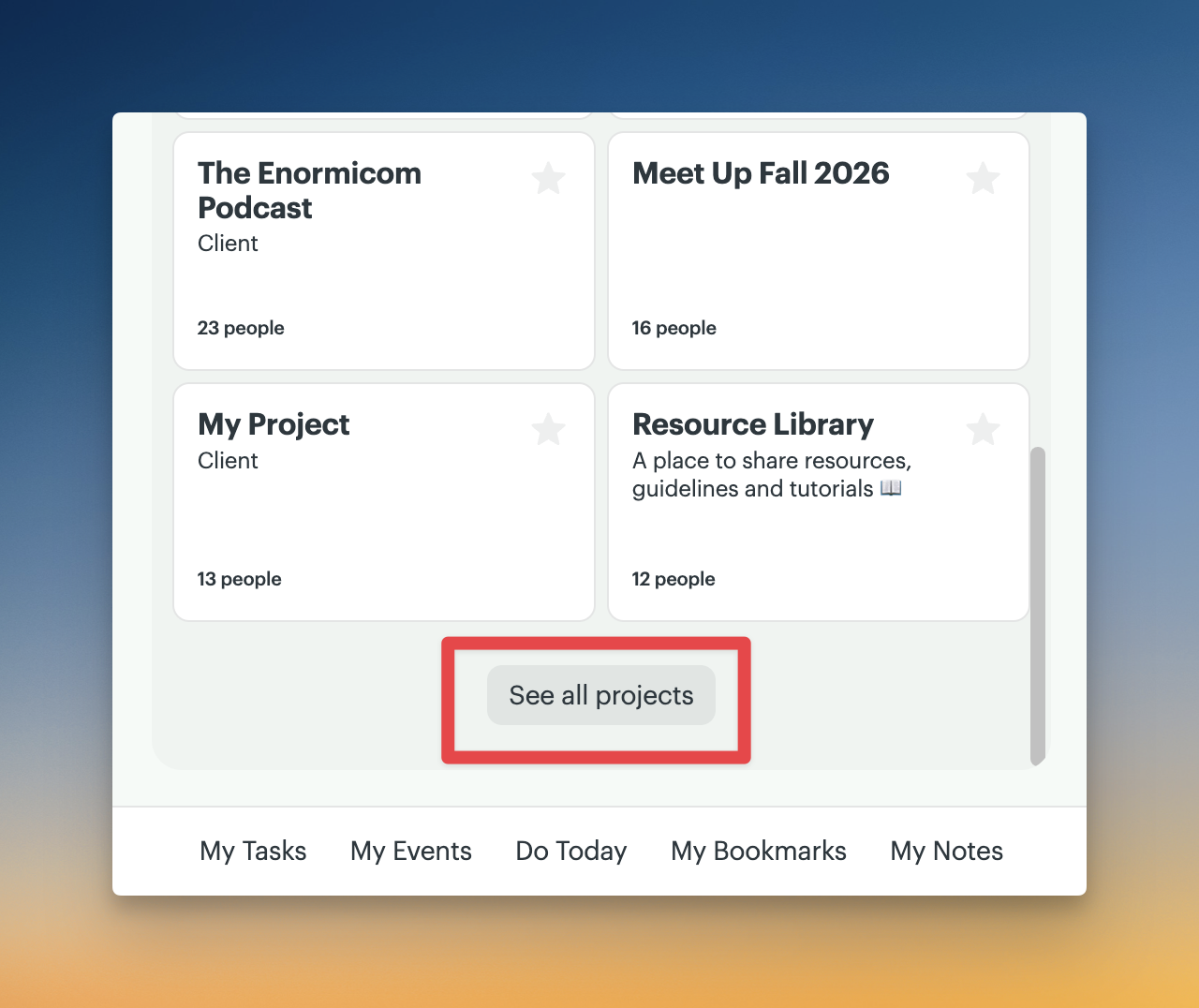
See all your projects in the project directory. Navigate there by clicking the "See all projects" button located beneath your project cards on your Home screen :
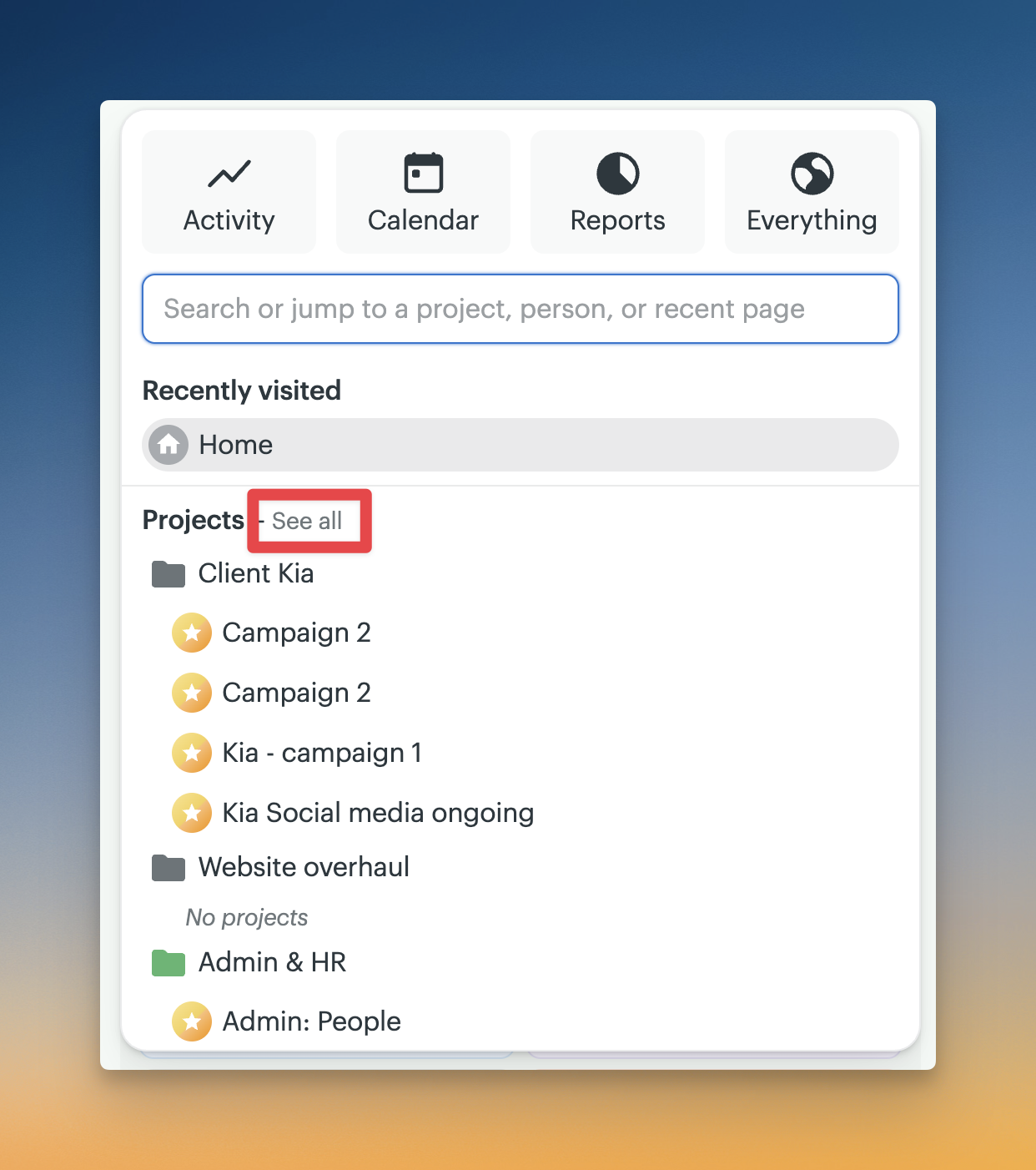
Or, open the Basecamp menu (Shift +J) and click the "See all" link next to the "Projects" title:
Archived and Trashed projects
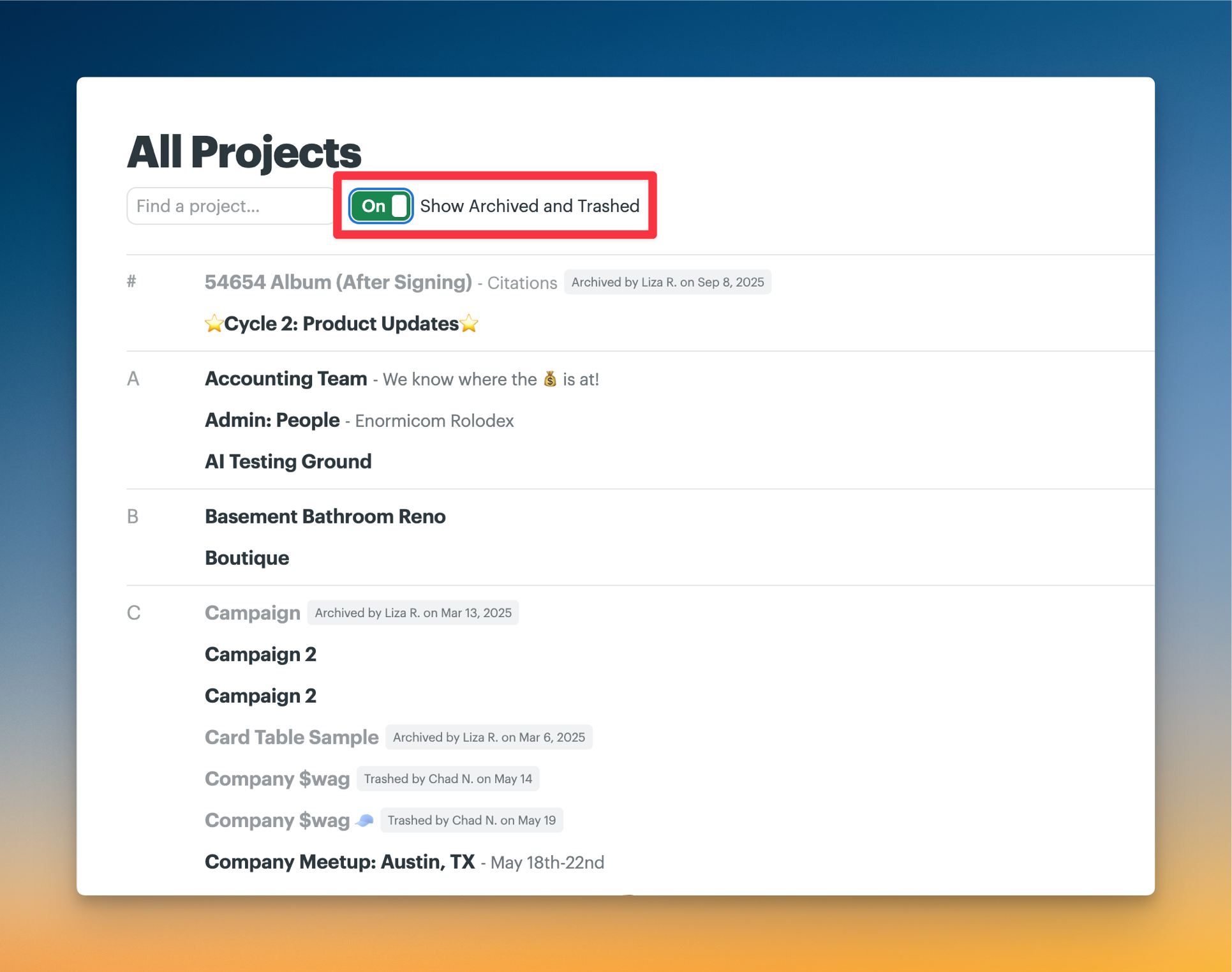
Access your archived and trashed projects by clicking the "Show Archived and Trashed" switch at the top of your project directory.
Note 🗒️: Account owners can see all trashed projects in the “View everything in the trash” option in Adminland.
Archived project items
Access your archived Message Board posts, To-dos, or Cards in the more options menu "•••" located on the top right of the Message Board, To-do list, or Card Column.
Stacks
Project stacks are “folders” in Basecamp 5. Add a folder by clicking the “Add a folder” button on the Home Screen.
Account & Settings
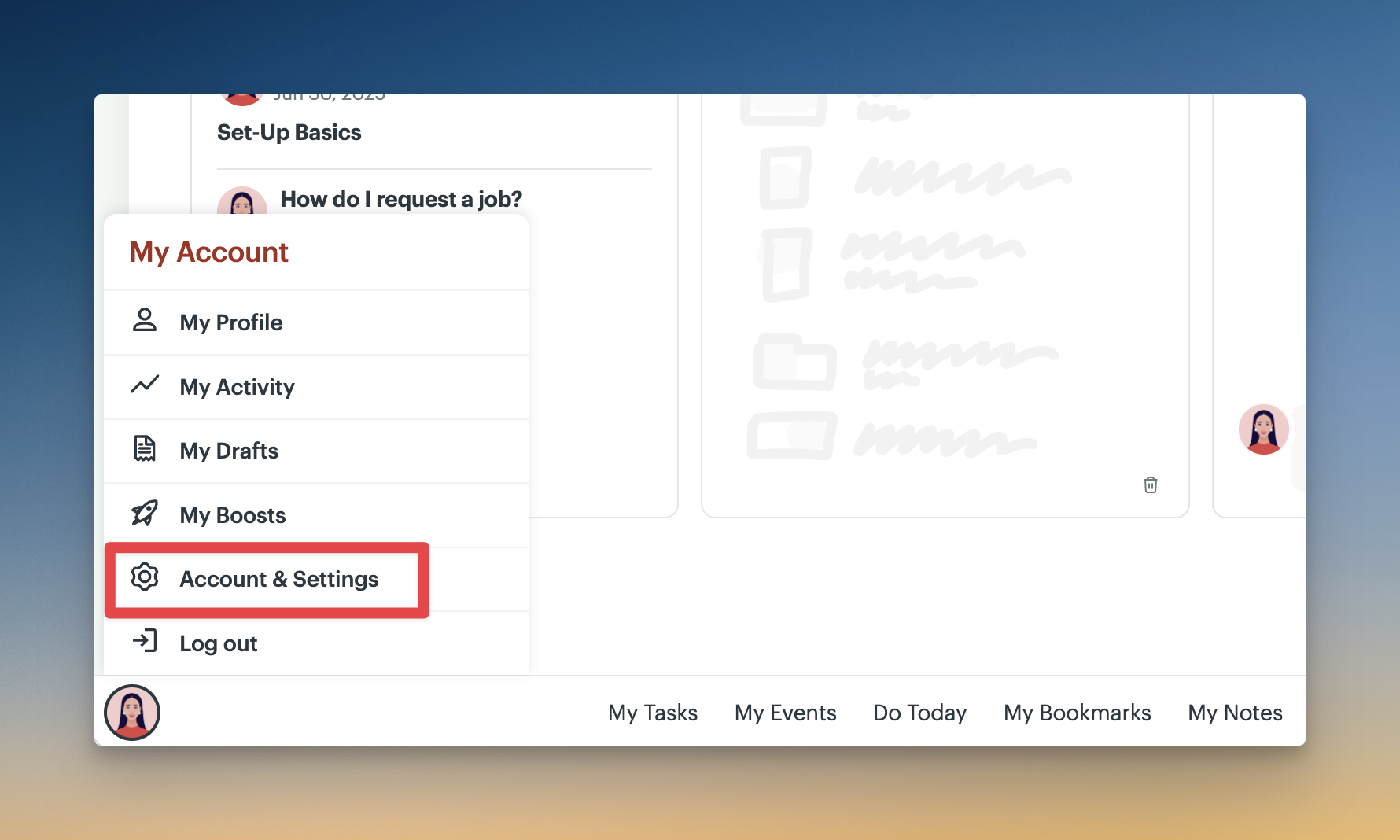
Open your My Account menu by clicking your profile photo located on the bottom left (or Shift + U) and click the "Accounts & settings" option.
On that page, you’ll find your:
- Templates
- Profile, password, 2FA
- Notification settings
- Preferences
- Out of Office
- My devices
- Support
- Other Basecamp accounts
Templates
Access your templates by clicking your profile photo, “Account & Settings,” and "Templates"
Switching between accounts
Access your other Basecamp accounts by clicking your profile picture, then “Account & Settings” or by typing the account name in the search bar in the Basecamp menu.
My stuff
At the bottom of every screen, you’ll be able to access your:
Boosts and Drafts
See your Boosts and Drafts by typing “my stuff” in the search bar in the Basecamp menu. Or, using the keyboard shortcuts from any screen — Shift + O to see your boosts or Shift + W to see your drafts.
My Activity and Profile
View your Activity (Shift + Y) or Profile by clicking your profile picture at the bottom left.
Note 🗒️: Basecamp 5 no longer displays counts for My Assignments, My bookmarks, and My Drafts.
Notifications and Pings
See your notifications and pings in the Notification sidebar.


Participation types
In Basecamp 4, non-client users could adjust the notifications they receive for a specific project by marking themselves "On the Project" or "Just Following." Team users, admins, and owners could also make this change other non-client users.
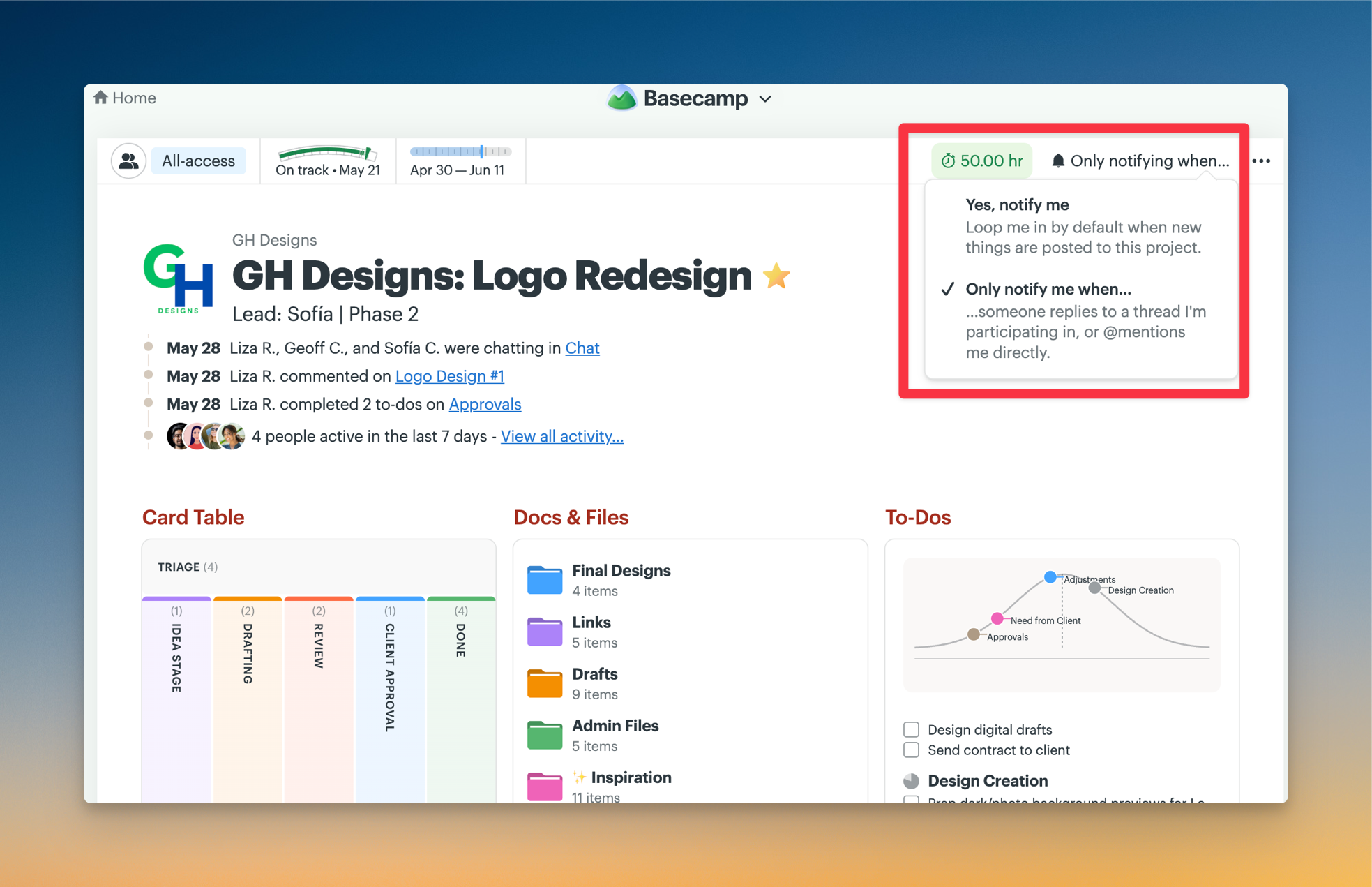
In Basecamp 5, non-client users can also choose how they want to be notified per-project:
- Open the project
- Click the "Notifications On" in the upper-right corner
- Select the "Only notify me when..." option
Admins and owners can also make this change for other non-client users:
- From the project's main page, click the 👥 people icon on the top left
- Click the "Notifications on" link to switch a user to "Only notifying when" (similar to "Just following") or click the "Only notifying when..." to switch them to "Yes, notify them" (similar to "On the project").
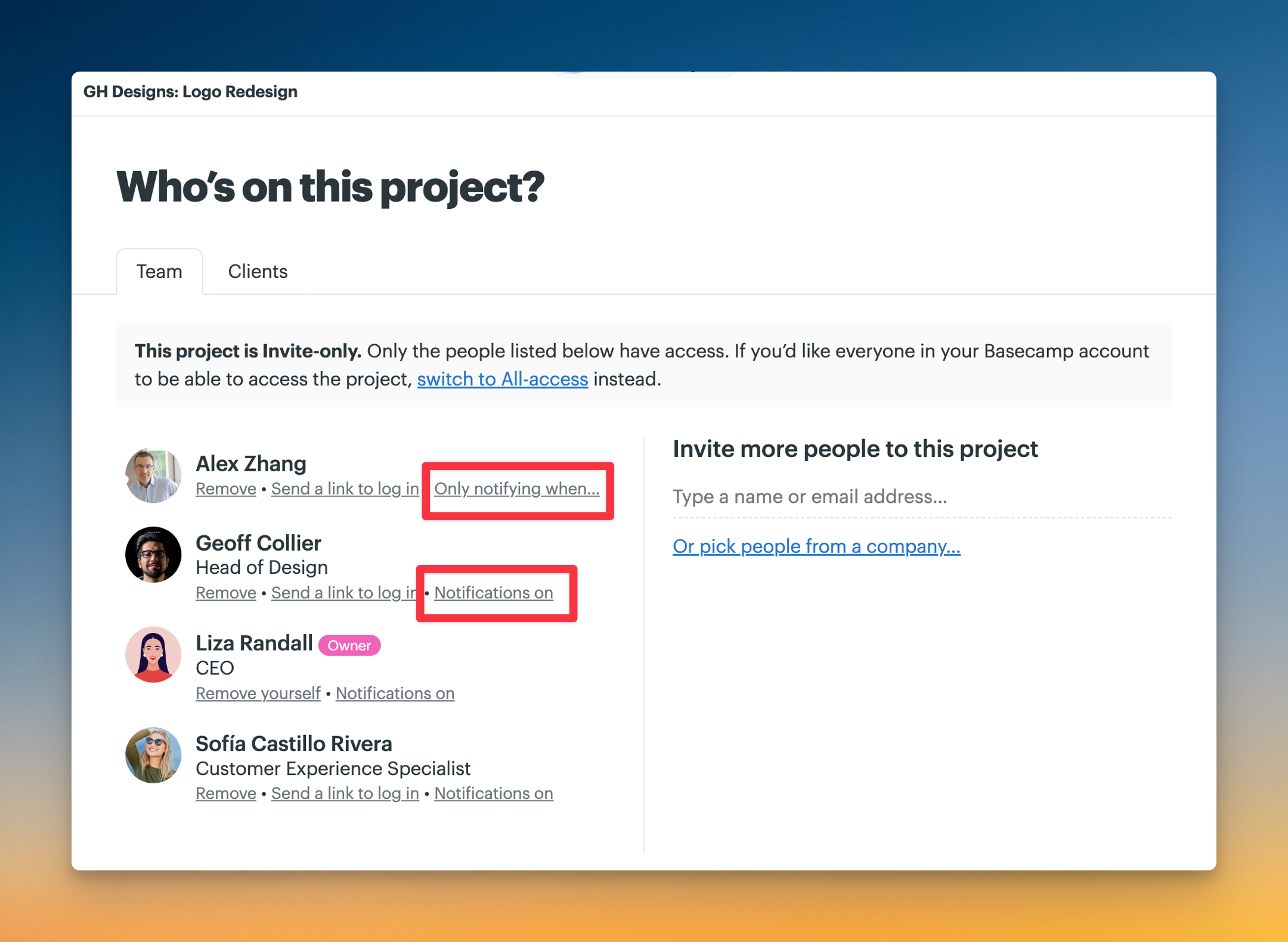
🗒️ NOTE: By default, all users are set to "Notifications on" for every project they have access to.
Focus mode
Focus mode is now “Shhh…” Silence your notifications by expanding the Notification sidebar and clicking “Shhh…”

Lineup
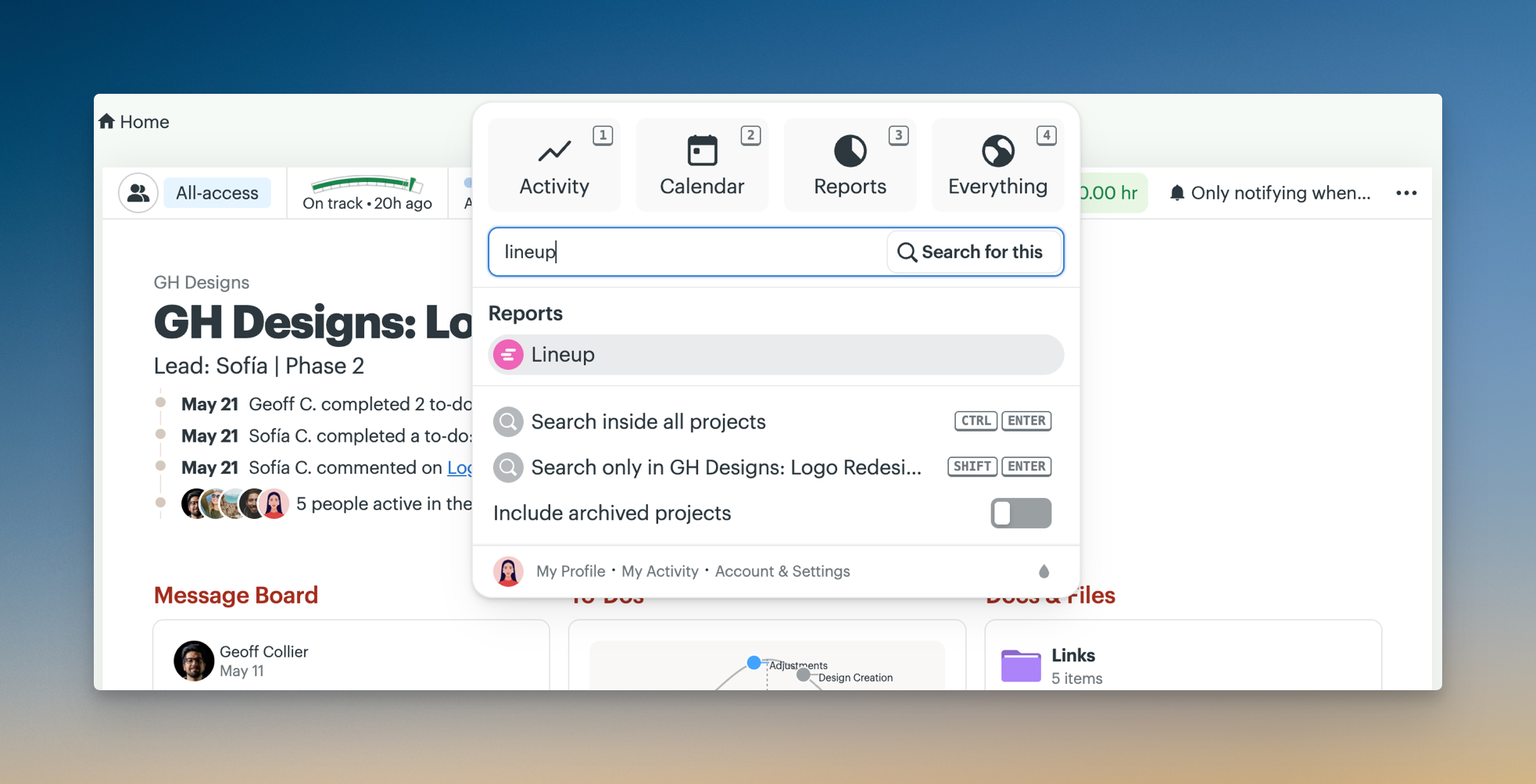
Access the Lineup by opening the Basecamp menu, clicking "Reports" or press 3 from any screen, and select "Lineup" from the list of reports. You can also see the Lineup by typing “Lineup” in the search bar in the Basecamp menu.
Schedules
Schedules are now Calendars in Basecamp 5. Access a project calendar from the project or click “Calendar” from the Basecamp menu or press "2" from anywhere in Basecamp.
Don’t forget
Don’t forget is replaced by “Bubble Up.” You can bubble up a notification, comment, post, or other item and choose when it should return. When the time comes, it shows back up in the “New for You” sidebar.
Bubble up a notification by clicking the ••• menu on any message, to-do, file, or other item and select “Bubble up.” Or, select the 🫧 option directly on a notification in your sidebar.

Doors
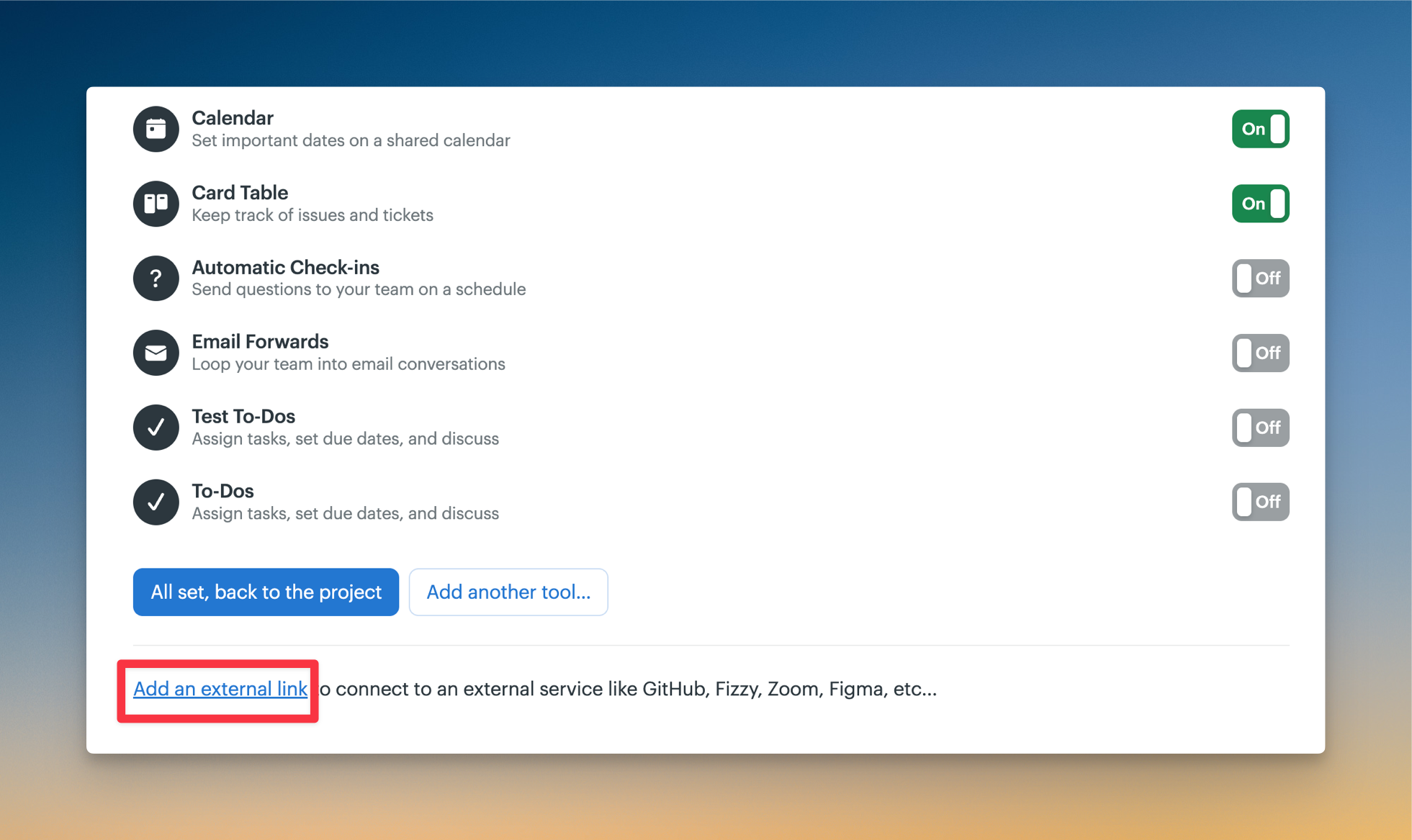
Doors are now “External links.” To add an external link, click the ••• located on the top-right corner of a project’s main page, select “Customize project tools,” scroll to the bottom of the page, and click “Add an external link.”
Editing and saving
The "Edit" and "Save" buttons are now at the top-right corner while you’re editing a document or Message board post.
Support
There are a few ways you can reach our support team:
- Click the "Support" button on the bottom right corner
- Use the keyboard shortcut Shift + ?
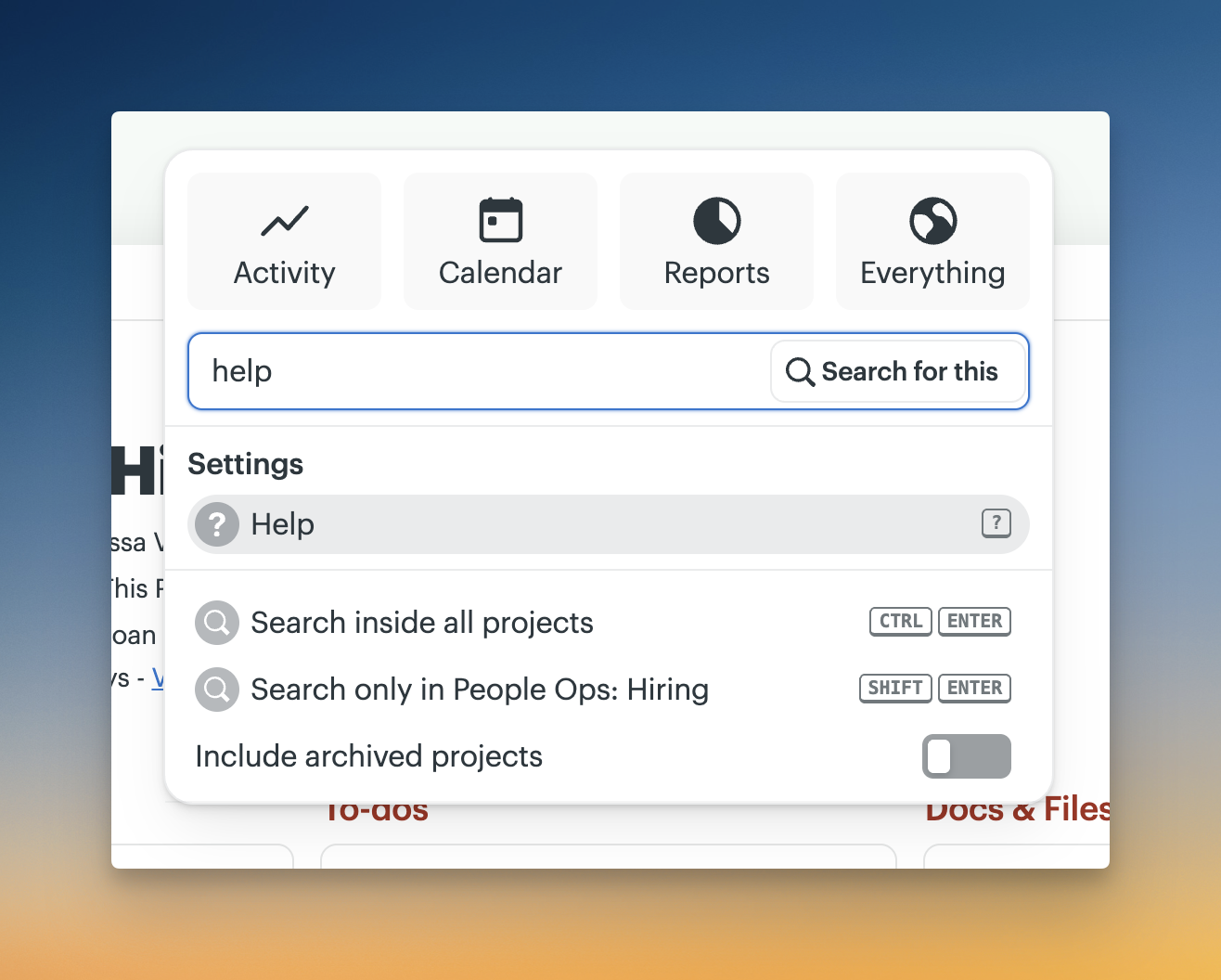
- Open the Basecamp menu (Shift + J), type "help," and hit enter