
Drafts & Scheduled Posts
Save a message or document in progress as a draft, or schedule it to post at a specific time. Use drafts when you’re not ready to publish, and scheduling when you know exactly when something should go out.
Jump to:
Saving and sharing drafts
Save your work as a draft to come back to it later.
Click Save a draft while writing a message or document to keep it as a draft instead of posting it.

Drafts are private to you by default. You can share a draft by copying a link and sending it to someone on the project. Only people with access to the project can view a shared draft.
Scheduling a post
Schedule a message or document to post automatically at a specific time.
Click the 🕓 schedule option, choose a date and time, then click Schedule and save.

Scheduled posts are saved alongside your drafts until they’re published. You’ll see a reminder in the tool when you have drafts or scheduled posts.
Edit, post, or delete a draft
Find your drafts in the tool where you created them, like the Message Board or Docs & Files. You’ll see a link like “Continue writing…” when drafts are available.

You can also open your Drafts from anywhere in Basecamp by pressing Shift + W, or by pressing Command + J (Mac) or Control + J (Windows/Linux), typing Drafts or My Stuff, then selecting Drafts.
Drafts can also be found in your profile menu on the bottom left of any screen.
Open a draft to continue working on it. Click Continue editing to make changes before posting or scheduling.
When you’re ready, click Post to publish it. To discard a draft, delete it from the draft view.
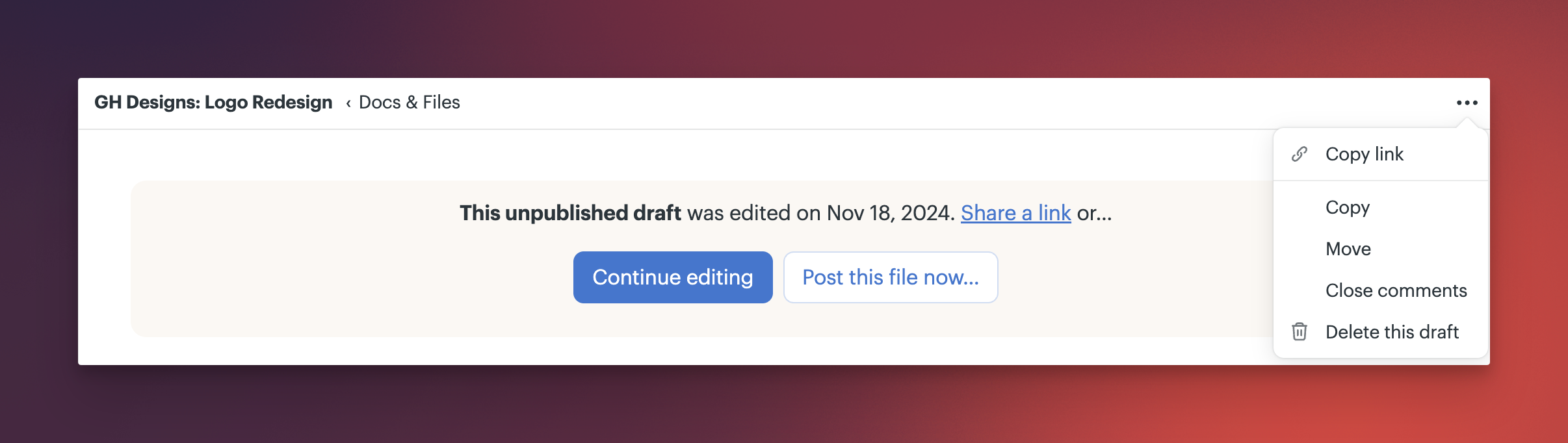
Your Drafts page may also include file uploads that were never posted.
For example, if you upload a file to Docs & Files but don’t click Post - such as navigating away or closing the tab - the upload appears here as a draft.
From Drafts, you can post the file or delete it to remove the unfinished upload.
🗒️NOTE: A draft or scheduled post may remain unpublished if the author is removed from the project, the account becomes inactive, or access changes.