
Notification settings
You have control over notifications from Basecamp at three levels: account-wide settings that apply everywhere, per-project settings for each project you're on, and per-thread settings for individual discussions. All your notifications appear in the notifications Sidebar and to your device or email, based on your settings.
Start with your account-wide settings to establish a baseline, then fine-tune from there.
Jump to:
- Account-wide notification settings
- Per-project notifications
- Per-thread notifications
- Chat notifications
- Automatic notification triggers
Account-wide notification settings
Your notification settings control what Basecamp notifies you about, how those notifications reach you, and when.
To get there: click your profile picture, then Accounts & Settings > Notification settings. You can also type "notification settings" in the search bar.

What? Choose your overall notification scope:
- Notify me about everything — new messages, comments, to-dos assigned to you, @mentions, Chats, and Pings you're part of
- Only notify me when someone sends me a Ping or @mentions me — Basecamp stays quiet otherwise; check the sidebar anytime to see what's new
You can also set reminders independently:
- Notify me about upcoming events — the day before and an hour before an event starts
- Notify me about upcoming assignments — the day before a due date and each day after until it's completed
How? Choose how notifications reach you:
- Send me email notifications — Basecamp bundles Pings together if they arrive within a few minutes of each other to prevent inbox overload; you won't be emailed if you're actively in Basecamp when the notification fires.
- Pop up notifications on my computer when Basecamp is open — you won't get pop-ups for items you're actively looking at
- Show the number of unread items — displays the unread count for Pings and notifications in your browser when Basecamp is open
When? Choose your notification schedule:
- Always! 24/7/365 no matter what — notifications arrive any time
- Work Can Wait! Only during my work hours — set your hours and days; outside those times, Basecamp holds notifications. Check Catch me up if anything happened after hours to receive a summary email or push notification covering everything that happened while you were away
Per-project notifications
Each project has its own notification setting, separate from your account-wide preference. Click the 🔔 bell icon at the top right of any project to choose:
- Yes, notify me — loops you in by default when new things are posted to this project
- Only notify me when... — only notifies you when someone replies to a thread you're participating in or @mentions you directly

Admins and owners can also make this change for other users (except clients). Click the 👥 people icon at the top left of the project's main page and click the "Notifications on" or "Only notifying when..." link beneath the user's name.
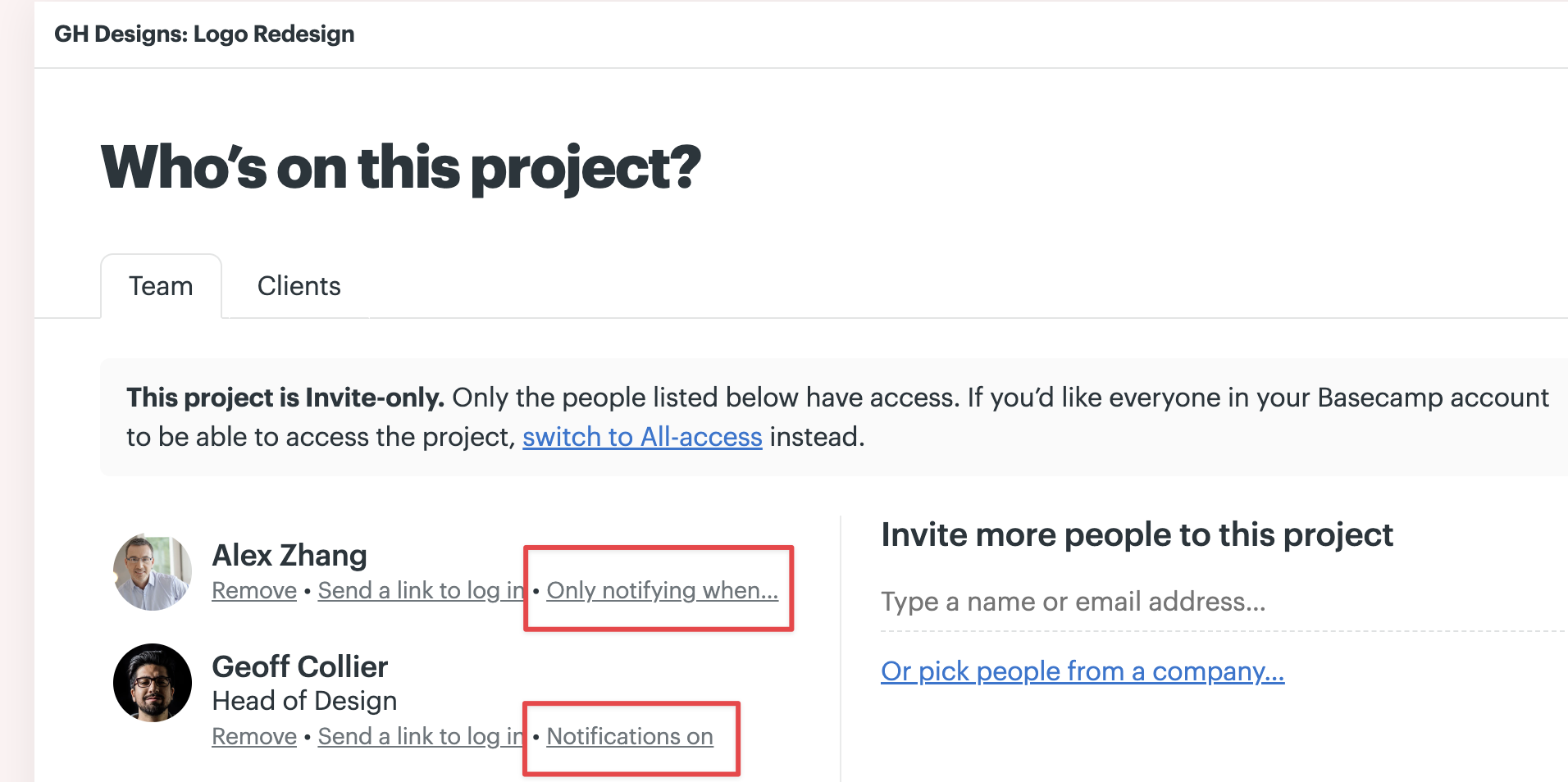
🗒️ NOTE: Client users cannot change their project notification setting and will always be set to "Notifications on."
Per-thread notifications
At the bottom of any message, to-do, or discussion, you'll see who's currently set to be notified when someone comments. Click Notify me to add yourself, or Don't notify me to opt out.

Click Add/remove people to change who gets notified on that thread. You can add or remove anyone, and choose to either notify them immediately or wait until the next comment is posted.
You can also unsubscribe from a thread directly from an email notification. Just click the unsubscribe link at the bottom of any notification email.
Chat notifications
Chat rooms have their own notification toggle, separate from your project and account settings.
Click 🔔 Notify me when people chat at the top right of a Chat room to start receiving notifications. Click 🔔 Notifying to stop.
🗒️ NOTE: If you have email notifications turned on, you'll receive an email notification for @-mentions, but not regular chats.
Additional Chat rooms added to a project don't automatically include everyone. People need to follow the room or be @mentioned to receive notifications from it.
Automatic notification triggers
Some things in Basecamp will notify you automatically based on your activity:
- You post a comment → you'll receive notifications on future comments to that discussion
- You're assigned a to-do → you'll be notified when anyone comments on it
- You assign someone a to-do → you'll be notified when anyone comments on it and when it's checked off
- Someone @mentions you → you'll be subscribed to future comments on that discussion; unsubscribe at the bottom of the thread
- Someone @mentions you in a Chat → you'll start receiving notifications for that Chat room; click Notifying to stop
- You're added to an Automatic Check-in → you'll be subscribed to answers for that question; you can unsubscribe from the question's ••• menu or from an email notification