
Basecamp on Mobile
The Basecamp app for iOS and Android gives you full access to your projects wherever you are. Your messages, to-dos, files, and teammates are all in the apps; they have all the same features as the browser, optimized for your phone or tablet.
Download Basecamp for iOS (requires iOS 17.2 or later) or Android (requires Android 9.0 or later).
- Getting around
- Checking your unreads
- Turning on notifications
- Searching for anything
- Adding home screen widgets
- Switching between accounts
- Sketching on images (iOS only)
- Troubleshooting
Getting around
Three buttons run along the bottom of the screen:
- Do Today (checkbox icon) — Your upcoming events, assignments, Bookmarks and Notes.
- Basecamp icon — Your full project list, search, recent activity, calendar, and reports. Tap your account name at the top to access settings or switch accounts.
- Unreads (bell icon) — Everything that's new and recent for you: messages, to-do assignments, @mentions, Pings, and check-in responses.
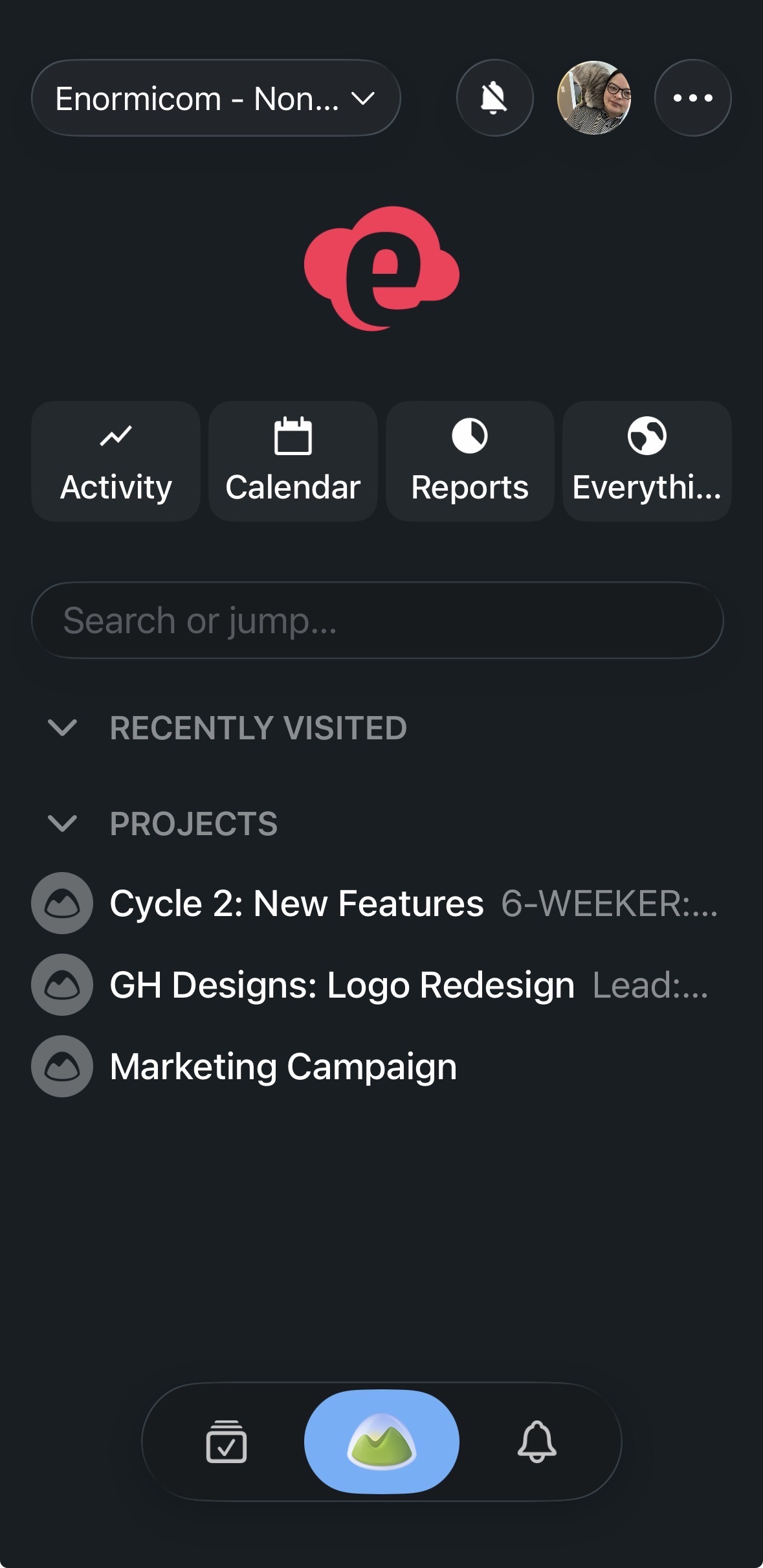
The app opens to whichever screen you were last on. Tap the Home icon any time to return to your activity feed.
Checking your unreads
The bell icon shows everything that's waiting for you. The badge on the icon tells you how many unread items there are.
Basecamp notifies you when someone @mentions you, assigns you a to-do, replies to a thread you're following, or sends you a Ping. With the app installed, you'll get push notifications on your device instead of emails.
You'll be prompted to allow notifications when you first open the app. To adjust your settings later, tap the Basecamp icon, then ⚙️ Settings (top right), then Notification Settings.
If you accidentally open a notification before you're ready to deal with it, you can mark it as unread: swipe left on the notification to Mark as Unread.
Turning on notifications
If you tapped Don't Allow when the app first asked for permission, notifications won't come through until you enable them from your device's Settings. Here's how:
2. Scroll down and tap Basecamp.
3. Tap Notifications.
4. Turn on Allow Notifications.
2. Tap Apps (sometimes listed as App Management or Applications).
3. Find and tap Basecamp.
4. Tap Notifications.
5. Turn on Allow notifications.
Searching for anything
Tap the Basecamp icon at the bottom, then tap Search or jump... to find anything in your account: projects, messages, files, people, to-dos, etc... Type a few letters and Basecamp surfaces matches alongside your recently visited items.
Adding home screen widgets
Basecamp widgets show upcoming events and due assignments right on your home screen, no need to open the app.
iOS
To add a widget to your Home Screen:
- Touch and hold an empty area of your Home Screen until the apps jiggle.
- Tap the + button in the upper-left corner.
- Select Basecamp, choose a widget size, and tap + Add Widget.
To add a widget to your Lock Screen (iOS 17.2 and later):
- Touch and hold the Lock Screen, then tap Customize.
- Tap the Lock Screen on the left, then tap Add Widgets.
- Tap or drag the Basecamp widget into place, then tap Done.
To configure a widget, touch and hold it, tap Edit Widget, and choose your account and what to display: upcoming calendar events, assignments due in the next 7 days, or both.
Android
To add a widget to your Home Screen:
- Touch and hold an empty space on your Home Screen.
- Tap Widgets.
- Touch and hold a Basecamp widget, slide it to your preferred spot, and lift your finger.
To resize a widget, touch and hold it, then drag the dots that appear on the edges.
Switching between accounts
If you have more than one Basecamp account, tap the Basecamp logo at the bottom right, then tap the account name at the top of the screen to switch to a different account.
Only accounts linked to your current sign-in email will be listed.
Sketching on images
iOS only
When uploading a photo to a Ping or Chat, you can sketch on it before it posts. After uploading, tap the image to reveal the sketch option. Pick a color, adjust the stroke width, and tap the checkmark when you're done — the annotated image posts to the conversation.
Troubleshooting
If the app isn't behaving as expected, try these steps in order:
- Make sure you have the right app. Search for "Basecamp - Project Management" in the App Store or Google Play. Other Basecamp apps in the store only work with older versions of Basecamp.
- Check your connection. Basecamp requires a wifi or cellular data connection while in use.
- Close and reopen the app. A fresh launch clears most temporary issues.
- Reinstall the app. If Basecamp won't open or keeps crashing, uninstalling and reinstalling usually resolves it.