
Export your Basecamp data
Account owners can export a full HTML copy of Basecamp data at any time. They can export individual projects, a selection, or the entire account.
⚠️ Planning to cancel? Export your data first, and let the download finish completely before canceling. If you cancel mid-download, the export won't complete and you'll need to contact support to retrieve it.
Jump to:
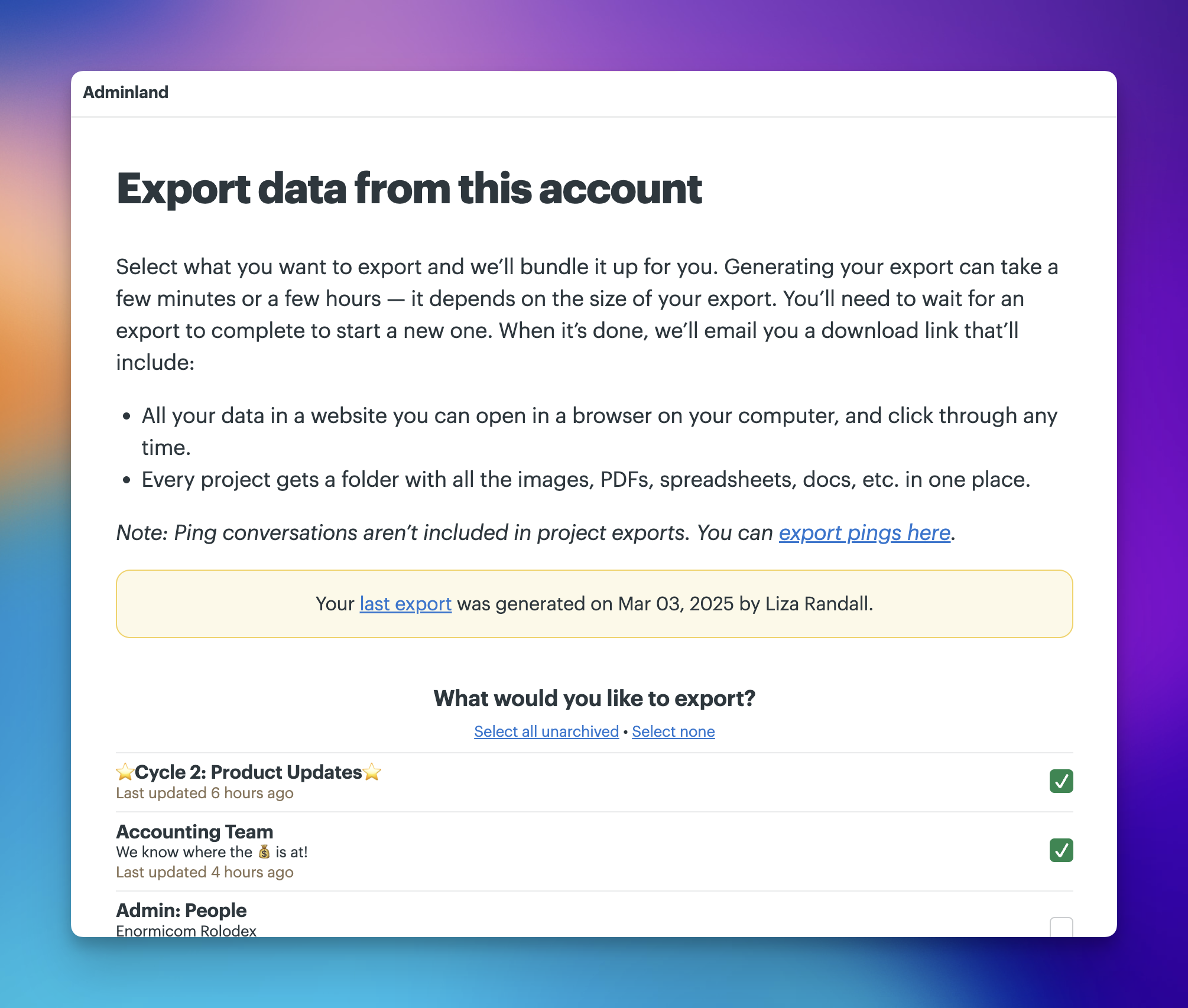
From the Home page, click the ⚿ Adminland button on the left side, then select Export data from this account. Only account owners have access to this feature.
Exporting project data
You'll see a list of all active and archived projects on the account, including projects you haven't been added to. Check off the ones you want to export and click Export my data.
Exports can take a while to compile depending on the size of your account. You'll receive an email when it's ready to download.
Exporting Pings
On the Export data page, you'll also find a separate option to export Ping conversations. You can export all Ping conversations on the account, or select specific conversations.
Before you export Pings, read this carefully:
Pings are private, one-on-one and group conversations. Exporting them means reading correspondence that people reasonably expected to stay private. The account owner legally owns all content in a Basecamp account, including Pings, but ownership doesn't make exporting those conversations appropriate in every situation.
We recommend exporting Pings only when there's a clear, legitimate reason: an active legal matter, a formal HR investigation, or a court order requiring it. Using a Ping export to monitor employees or review personal conversations outside of those circumstances is a serious breach of trust.
Not seeing the export option?
If the export option isn't visible in Adminland, you're not an account owner. Only owners can export data. Check Adminland for a list of current owners on the account and reach out to one of them directly.