
Printing
Print any page in Basecamp using your browser or device’s print option.
Basecamp automatically adjusts the layout to create a clean, printer-friendly version of what you’re viewing.
Jump to:
Printing a page
Open the page you want to print, then use your device’s print option:
- In a browser or PWA, press Command + P (Mac) or Control + P (Windows/Linux)
- In the Basecamp desktop app, click the File menu, then select Print
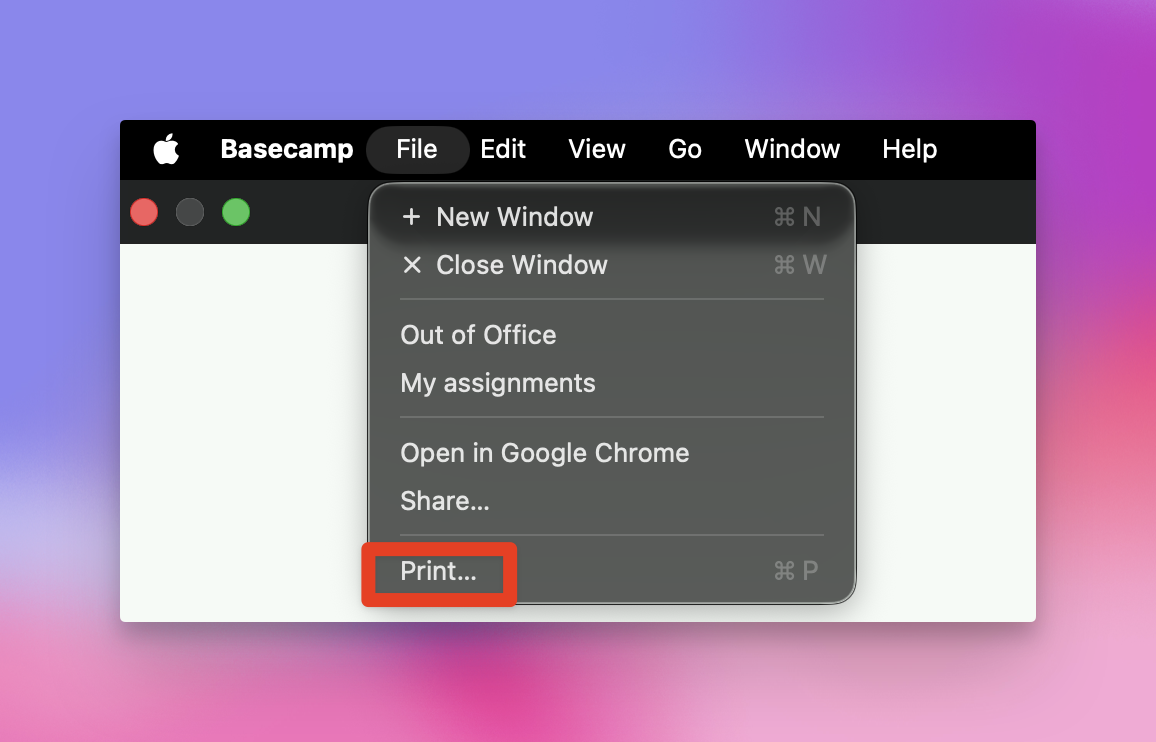
Adjust your print settings if needed, then click Print.
Basecamp uses your system’s print dialog, so printing works the same way as it does in your browser or other apps.
What gets printed
When you print a page, Basecamp removes navigation and adjusts the layout so the content is easier to read on paper.
Printed pages include the main content, like messages, to-dos, or documents, along with relevant details such as comments and attachments.