Email Forwards
Forward emails into a project to keep important conversations and updates in one place. Each forwarded email becomes a new item your team can read, comment on, and track alongside the rest of your work.
Jump to:
- Adding the Email Forwards tool
- Forwarding an email
- Viewing forwarded emails
- Notifications and attachments
Adding the Email Forwards tool
Add Email Forwards to a project to start sending emails into Basecamp.
Click the + button on the project page and select Email Forwards, or open the ••• menu and choose Customize tools, then add Email Forwards.

When you add the tool, you can give it a custom name.
Forwarding an email
Each project has its own email address you can forward messages to.
You can forward an email to save@app.basecamp.com, and Basecamp will email you back to ask where it should go. Or, send it directly to a project using its email address.
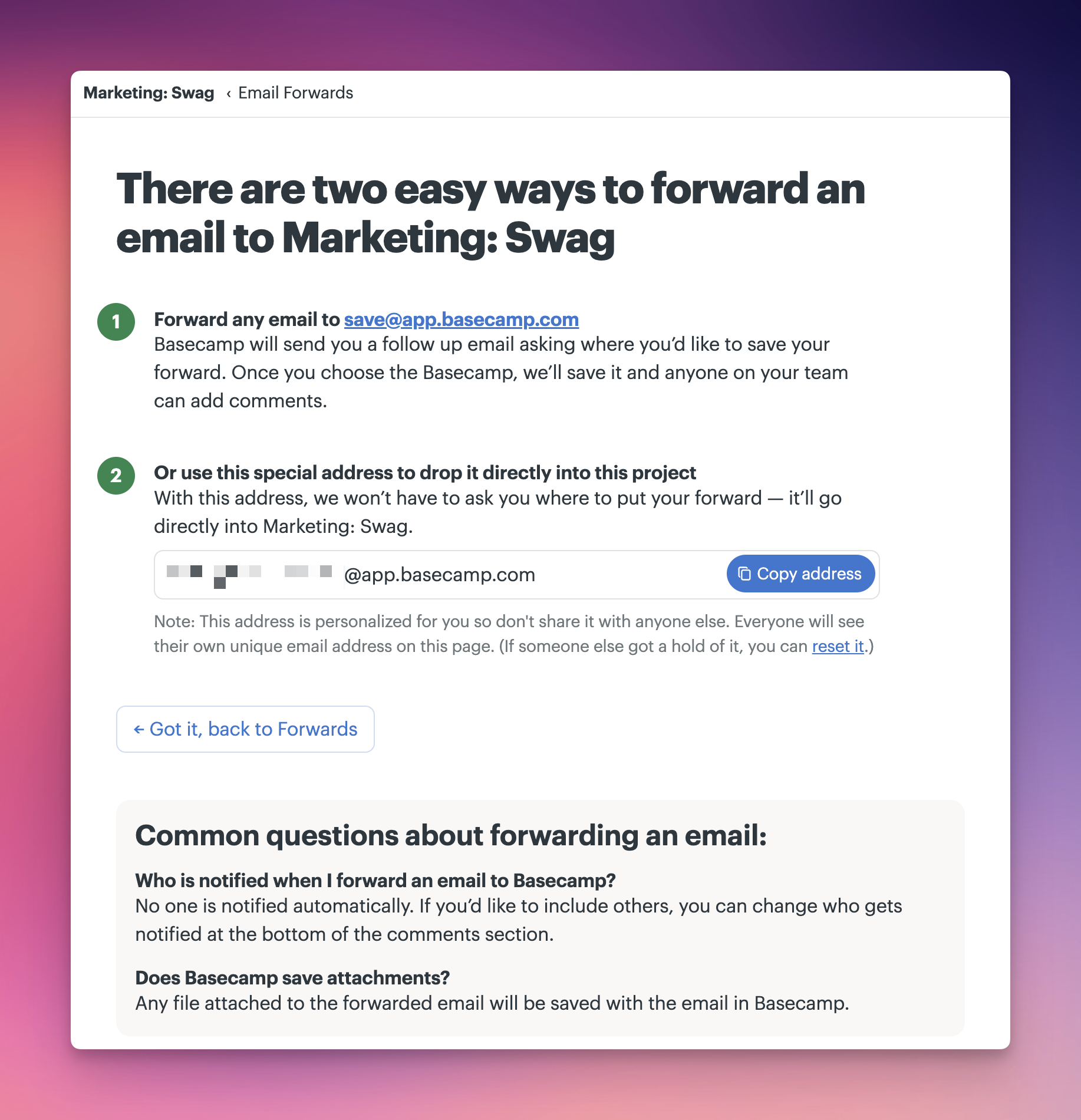
📝NOTE: Forwards work best when you forward each email directly from your email client. Auto-forwarding may work but can break easily. Be sure the subject line starts with “FWD:” (for example, “FWD: Client edits”).
Viewing forwarded emails
Forwarded emails appear as items in the Email Forwards tool.
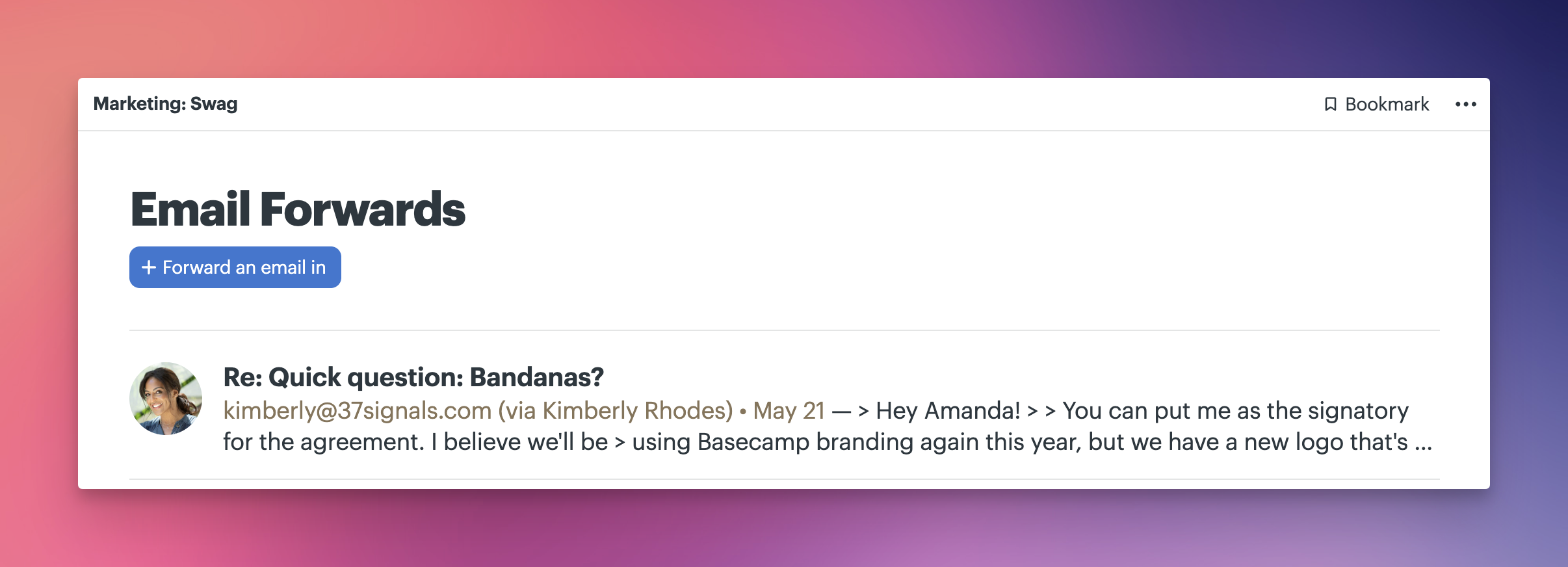
Open a forwarded email to read the full message, see sender details, add internal comments for your team, or reply directly to the original sender.
Forwarded emails become part of the project, so your team can discuss and follow up just like any other item.
💡 TIP: Want to come back to an email later? Use Bookmarks to save it for quick access
Notifications and attachments
Forwarded emails behave like other items in Basecamp.
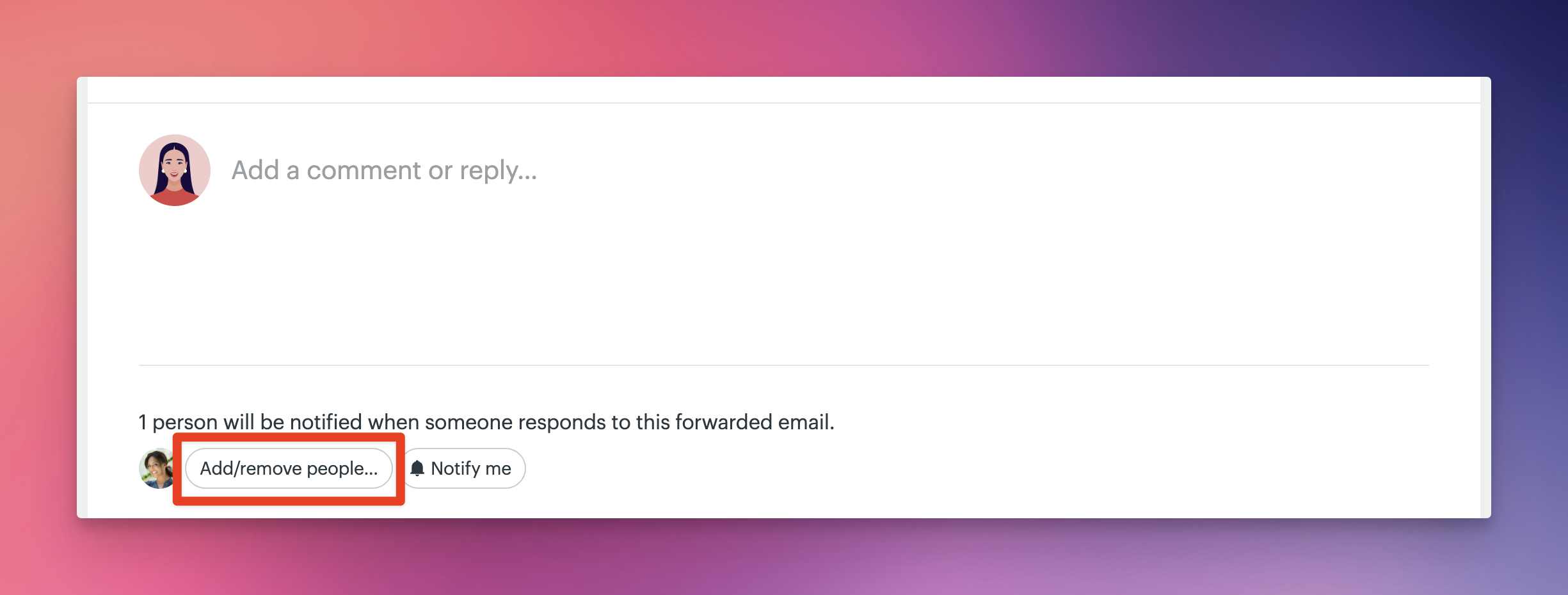
Attachments included in the email are saved with it (up to 25MB). When an email is forwarded, no one is notified automatically.
To notify others, add people from the comment area or turn on notifications for replies. Comments and replies stay attached to the forwarded email, so your team can discuss internally and follow up with the original sender in one place.