
Templates
Create reusable templates for projects, to-do lists and card tables with the same structure, workflows, and setup across projects.
Jump to:
- Creating a template
- Creating a template from an existing project
- Using a template
- Working with dates and schedules
- Assignments and people
- Managing templates
To access templates, open the Basecamp menu, click Accounts & Settings, then click Templates. You can also search for “Templates” to jump there directly.
Creating a template
Create templates for full projects, individual to-do lists, or a Card Table.
On the Templates page, use the toggle to switch between Project Templates, To-do List Templates, or Card Table Templates then click New Template.
Project templates can include tools, messages, to-dos, cards, files, and other project structure. You can also choose whether clients can use projects created from the template.
To-do list templates reuse lists, notes, files, and assignments across projects.
Card Table templates recreate the columns and cards you've set up.

Creating a template from an existing project
Turn an existing project into a reusable template to keep the same structure, assignments, schedules, and setup for future work.
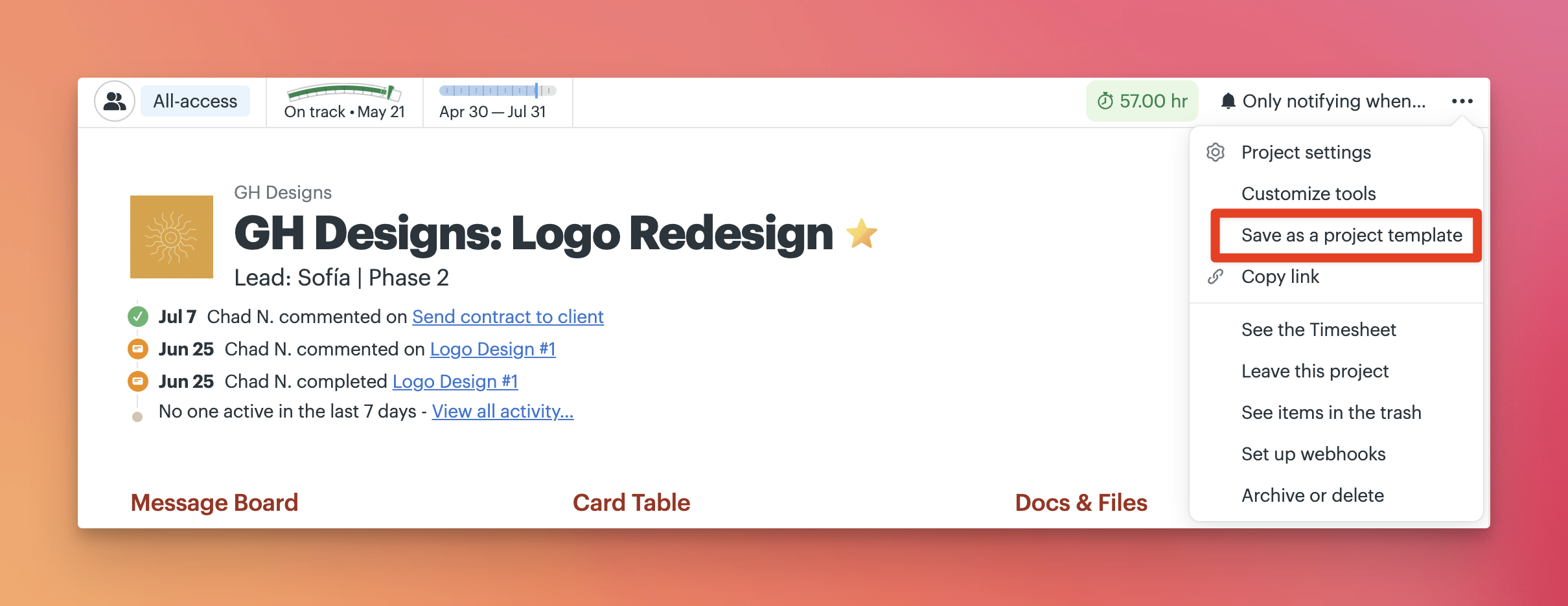
Open the project, click the ••• menu, and select Save as a project template.
Give the template a name and optional description, then choose what to include:
- Include people keeps the same assignments for to-dos, cards, events, and check-ins in the template
- Include comments keeps comments from items in the template
- Remember client visibility keeps items marked as visible to clients visible in projects created from the template
Completed to-dos reset to incomplete, cards return to Triage, and chat history is removed. Dates and events adjust relative to the project’s start date.
Click Create template to finish.

Using a template
Use a template when you create a new project, to-do list or card table from the Templates page. Just use the more options menu (•••) located on the top right of the template you want to use:

You can also select a template when creating a new project or list. To create a project from a template, click + Make a new project, select Use a project template…, choose a template, then name the project and click Create this project.

To use a template when creating a to-do list, open a project’s To-dos, click + New list, select Use a to-do list template…, then choose a template and create the list.

Working with dates and schedules
Templates use relative dates instead of fixed ones, so schedules adjust automatically each time you use the template.
When you create a project from a template, to-do due dates, card dates, and schedule events adjust based on the project’s start date.
For example, if a to-do is due 3 days after the project starts, it will always be scheduled 3 days after the start date - no matter when you create the project.
If no start date is set, dates are based on the day the project is created.
Assignments and people
Templates can include assignments for to-dos, cards, events, and check-ins.
When you create a project from a template, assigned people are added to the project automatically and assigned to the same work as in the template.
If someone in the template isn’t already on the project, you’ll be asked to confirm before adding them.
You can also leave assignments out when creating a template and assign work later.
Managing templates
Manage your templates from the Templates page.
From there, you can edit, copy, archive, or delete templates.
To copy a template:
- Click the ••• menu on a template
- Click Copy
- Give the new template a name and description
- Click Create template
Changes made to a template will not affect projects or lists that were already created from it.

📝 NOTE: In accounts created before 2023, all non-client users can edit templates and create projects.