
Formatting text in Basecamp
Your writing deserves to look elegant. Basecamp's text editor supports rich formatting including headings, tables, code blocks, and voice notes, so you can communicate with as much or as little structure as the work calls for. The editing options appear at the top of the composition area wherever you write: Messages, Docs, comments, Pings, Chats, and My Notes.
Jump to:
- Styling your text
- Lists
- Code
- Tables
- Images and files
- Embedding outside content
- Voice notes
- Dividers
- Markdown Formatting
Styling your text
The formatting toolbar appears at the top of any compose area. Use it to apply text styles, add links, or structure your writing.
- Bold and italic apply with the B and I buttons, or with the standard keyboard shortcuts (⌘B / ⌘I on Mac, Ctrl+B / Ctrl+I on Windows).
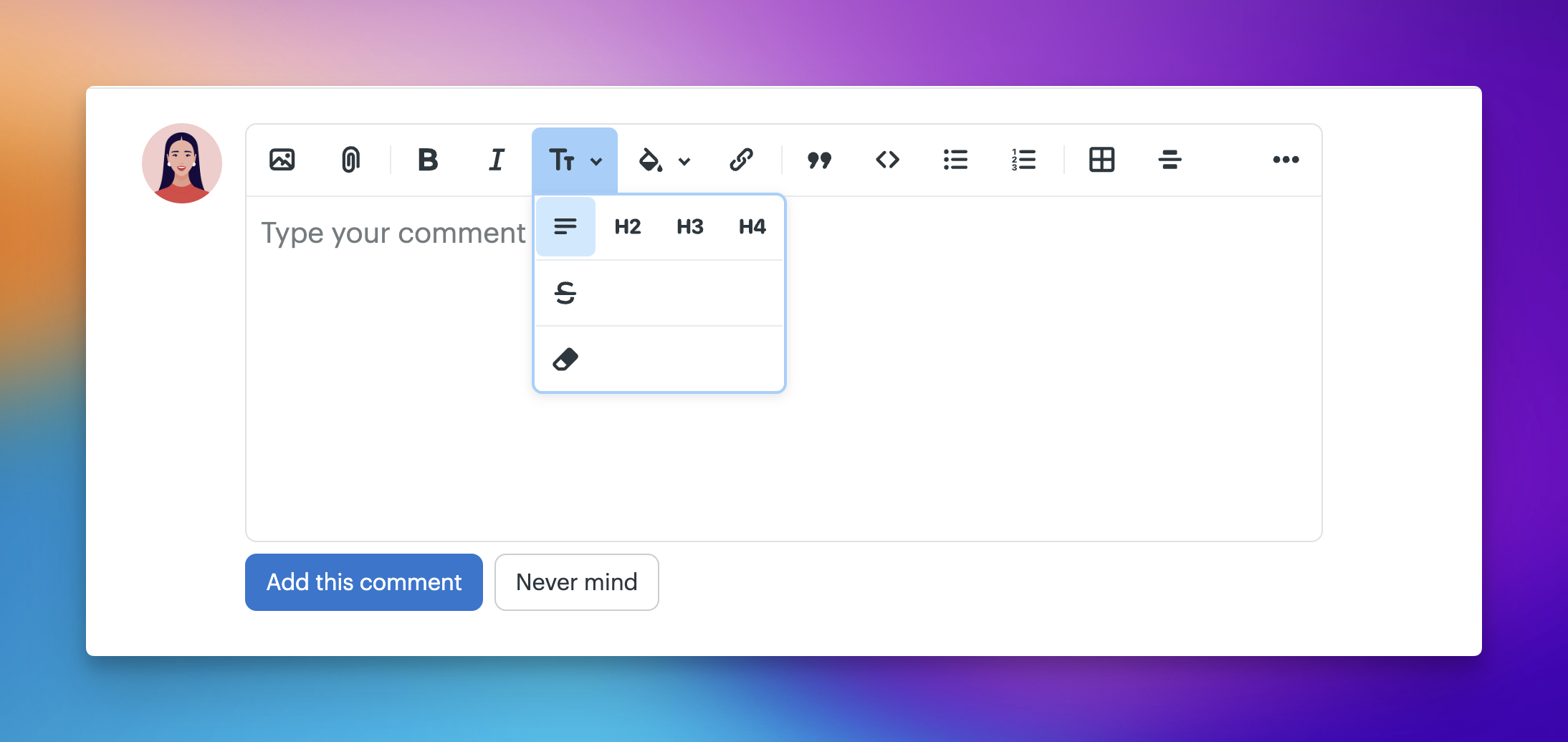
- Headings — Open the Tt menu to choose Large (H2), Medium (H3), or Small (H4) headings to give your content hierarchy.
- Strikethrough — Useful for showing something is done or no longer relevant
without deleting it. Found in the Tt menu. - Text and highlight color — Change the color of selected text or apply a highlight.
- Links — Select any text and click the link icon to add a URL.
- Blockquotes — Indents and visually offsets text, useful for quoting someone or pulling out a key point.
- Clear formatting —Strips all formatting from selected text and returns it to normal. Handy when pasted text brings in unwanted styles. Found at the bottom of the Tt menu.
Lists
Click the bullet list or numbered list button to start a list. Press Enter to add a new item, and Tab to indent and create a nested list. Press Enter twice to exit the list.
Code
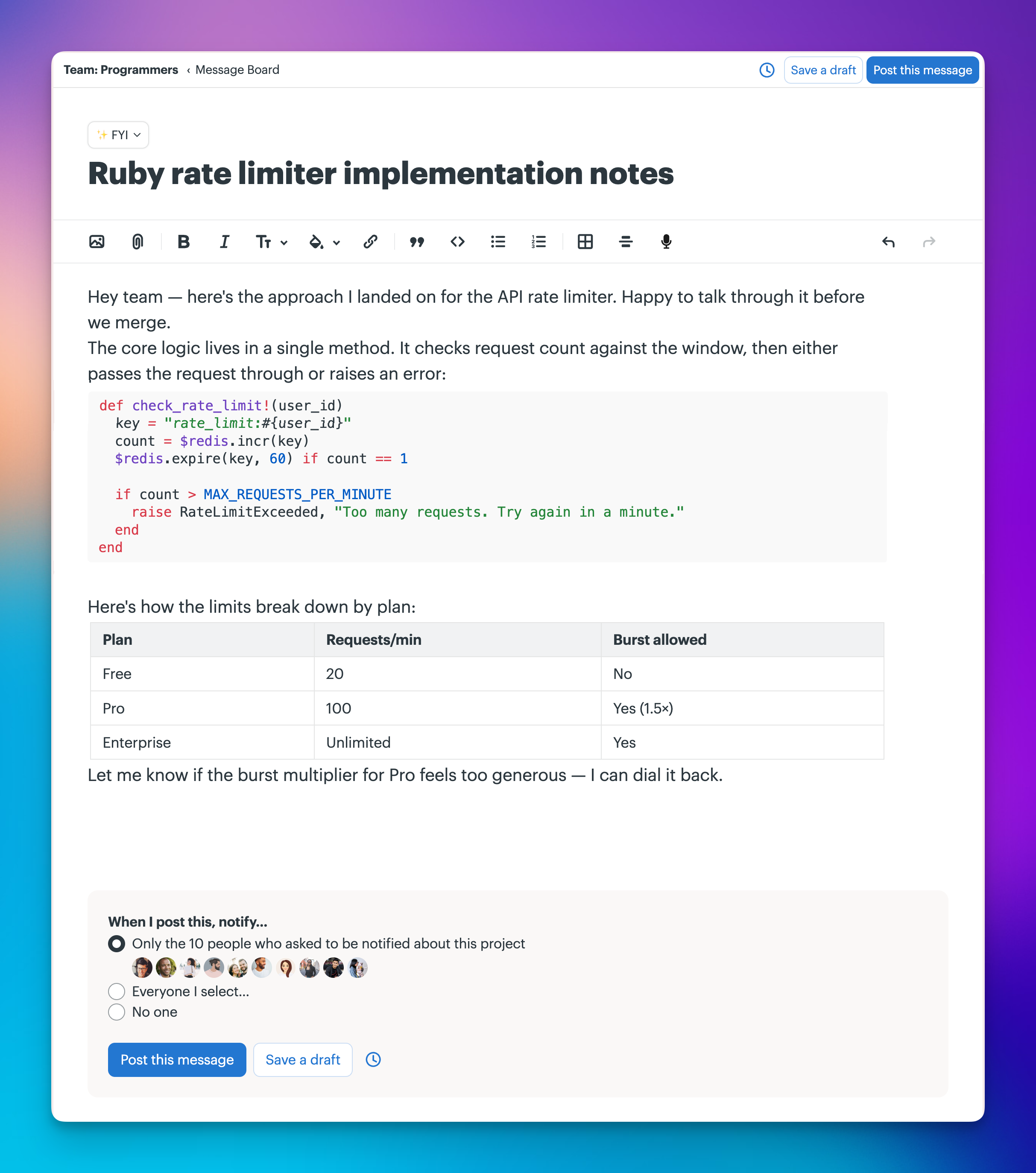
For a full code block, click </> on an empty line. The block opens with a language selector with Ruby, HTML, Swift, JavaScript, and more options for syntax highlighting.
Tables
Click the table icon to insert a table. The basic grid is 3x3, but you can add as many rows or columns as you need.
If you're pasting in content that's already structured as a table, from a spreadsheet, Google Sheets, Excel, etc... paste it directly into the compose area rather than into an existing table. Pasting into a table cell will nest a new table inside it instead of filling the grid you created.
Images and files
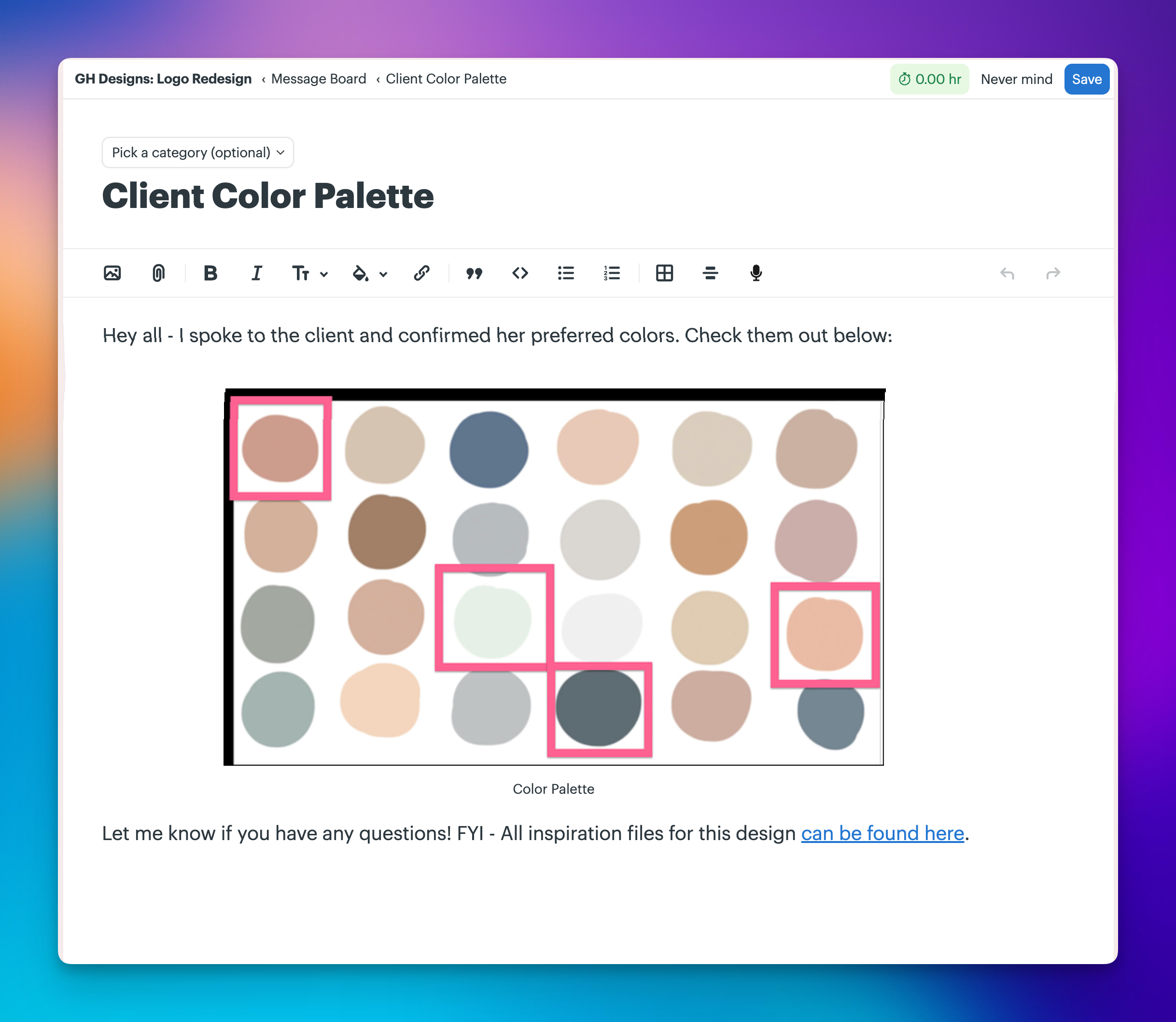
To embed an image inline, click the image icon in the toolbar and select a file, or drag and drop an image directly into the compose area. Add multiple files to create a small gallery.
Add a file by clicking the attachment icon or drag and drop the file into the compose area. Attached files appear as a linked item below your content rather than inline.
Embedding content from other services
Use the 🔗 icon and paste a link from a supported service. Choose "Yes, embed it" and Basecamp will turn it into an embedded preview automatically. Use embeds to share videos, recordings, audio, and other media so your team can view them without leaving Basecamp. If a link can't be embedded, it appears as a standard link instead.
Supported services include YouTube, Vimeo, Loom, Spotify, CleanShot, X (Twitter), Flickr, Imgur, and SoundCloud.
To embed a GIF, the link must point directly to the file and end in .gif. links to a Giphy or Imgur page won't embed correctly.
Voice notes
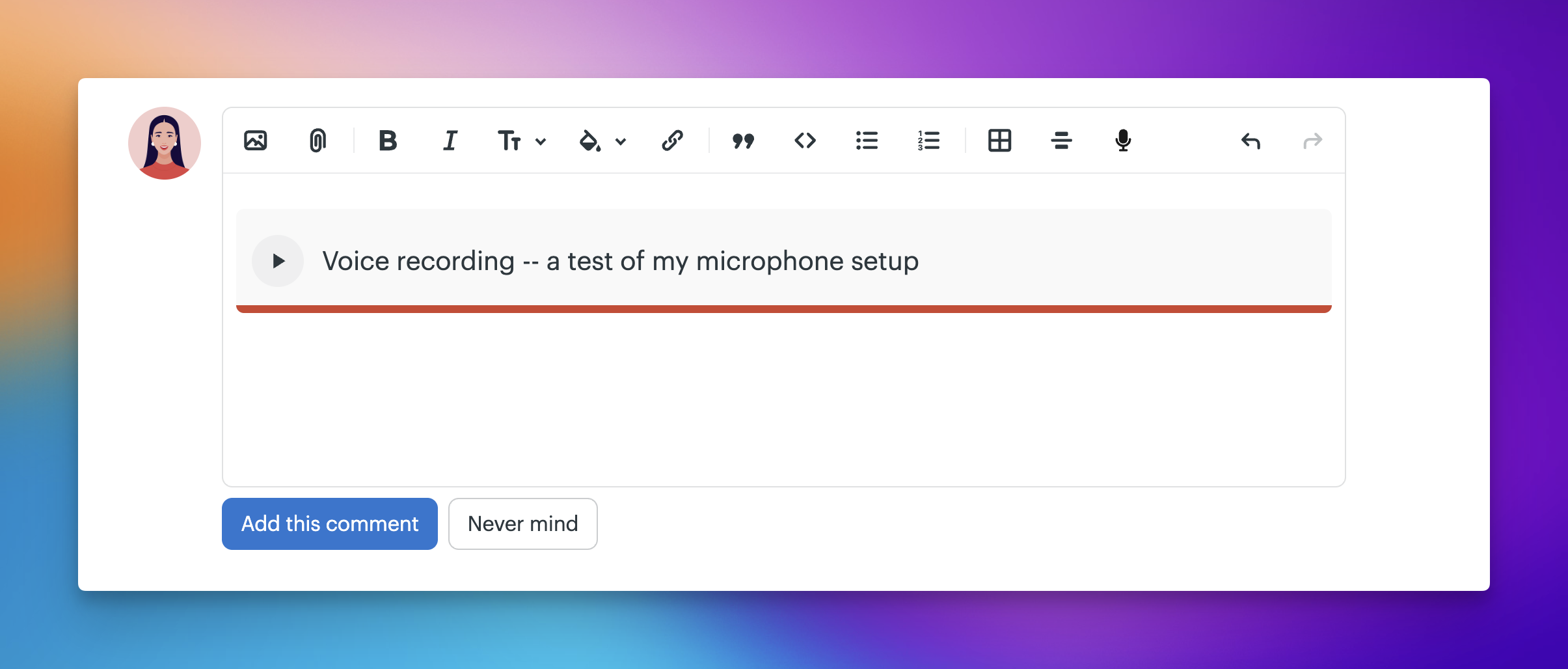
Click the microphone icon to record a voice note directly in the compose area. Voice notes appear inline with your text, so you can mix written and spoken content in the same message or doc.
Dividers
Separate distinct sections in a message or doc by using a divider. Click the horizontal line icon in the toolbar to insert a divider a full-width line at the cursor position.
Markdown Formatting
- Basecamp's text editor supports Markdown syntax. You can format as you type without touching the toolbar — type
##for a heading,**bold**,-for a bullet list, etc... You can also copy and paste full Markdown-formatted documents and Basecamp will format them correctly.
For a full reference, visit the Markdown Guide.