
Enabling microphone access
Voice Notes need microphone access. If you weren't prompted automatically or you accidentally denied access, here's how to enable that access in your browser.
Jump to:
Google Chrome
- Log into Basecamp on Chrome
- Click the "View site information" icon to left of the website's URL
- Click Site Settings
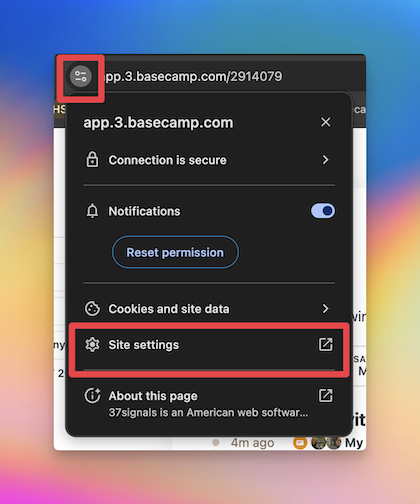
- Find Microphone
- Set it to Allow
- Refresh the page
Mozilla Firefox
- Log into Basecamp on Firefox
- Open Page Info (⌘ + I on Mac or Ctrl + I on Windows)
- Select Permissions
- Find Use the Microphone
- Set it to Allow
- Close the Page Info window
- Refresh the page
Microsoft Edge
- Log into Basecamp on Edge
- Click the "lock" icon Select Settings
- Find Microphone
- Set it to Allow
- Refresh the page
If you don’t see a microphone option there, check your Edge settings to make sure Microphone access is allowed.
Safari (Mac)
- Log into Basecamp on Safari
- Click Safari in the top menu
- Click Settings (or Preferences)
- Click the Websites tab
- Select Microphone from the sidebar
- Find Basecamp
- Set it to Allow
- Refresh the page
Safari doesn’t always recognize microphone access right away. If it’s still not working, try refreshing the page or restarting Safari.
Still not working?
If you’ve enabled access and your microphone still isn’t working:
- Refresh the page and try again
- Restart your browser
- Make sure no other apps (like Zoom or Teams) are currently using your microphone
If you're still having trouble or you have any questions about this, please reach out to the Basecamp support team. We're here to help!